
Connecting directly to your Raspberry Pi is cumbersome and ssh isn’t everyone’s cup of tea. For those people there is another option, Remote Desktop.
First we will need to have Installed the Raspberry Pi OS on your Raspberry PI already. For those instructions you can see this guide here.
Once you have the OS installed on your Raspberry pi the rest is relatively simple.
Enter the following command:
- sudo apt update && sudo apt upgrade -y
This is an update command and will ensure everything is up to date. Finally type:
- sudo apt get xrdp
Now go to your computer you want to Remote Desktop from to your Raspberry Pi. We will be using a Windows machine in this guide but any Operating System should do.
Go to start menu and type Remote Desktop Connection and you should see the app. Enter it.
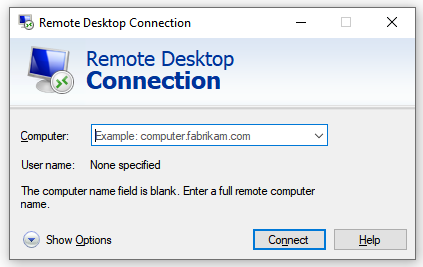
Enter the IP of the raspberry pi. You can find it out by typing ifconfig or ip address on its terminal.
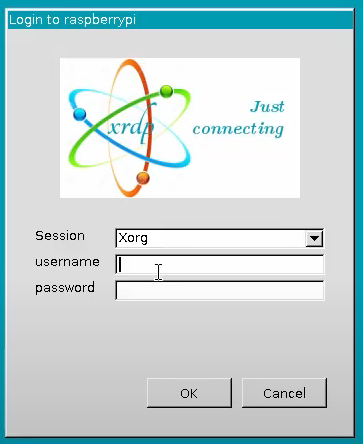
You will be prompted to enter the username and password. Enter it. After a few seconds you should be inside!
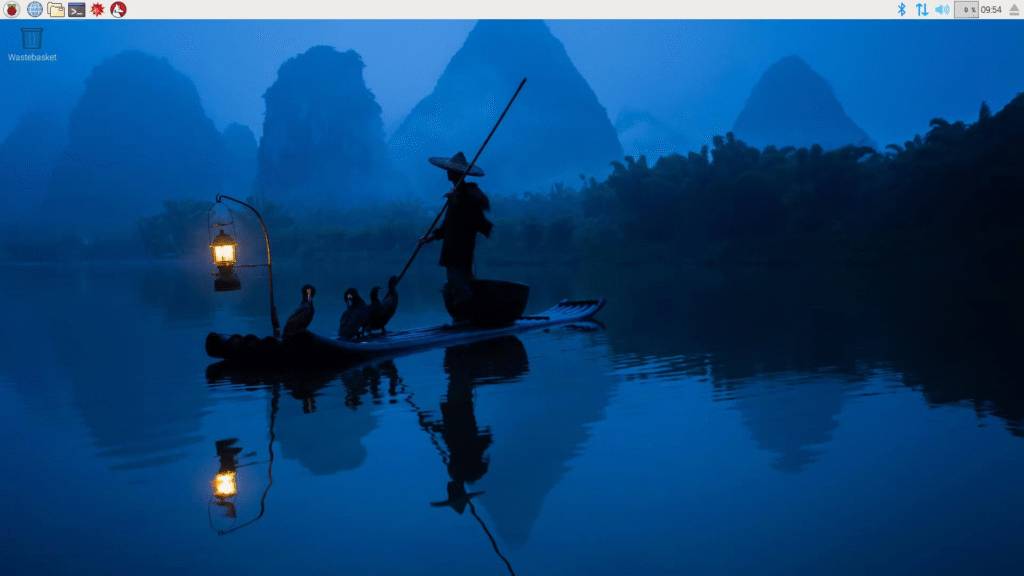
Congratulations! Now you don’t need to physically move from one place to other to manage two systems!
Hope this tutorial was helpful to you!